Track Delivery in cPanel Mail Hosting: Complete Guide to Deferred & Failed Emails
Track Delivery in cPanel Mail Hosting: Complete Guide to Deferred & Failed Emails Email communication is one of the most critical parts of any business. Whether you are sending invoices, OTPs, customer replies…
By Fabonic Admin
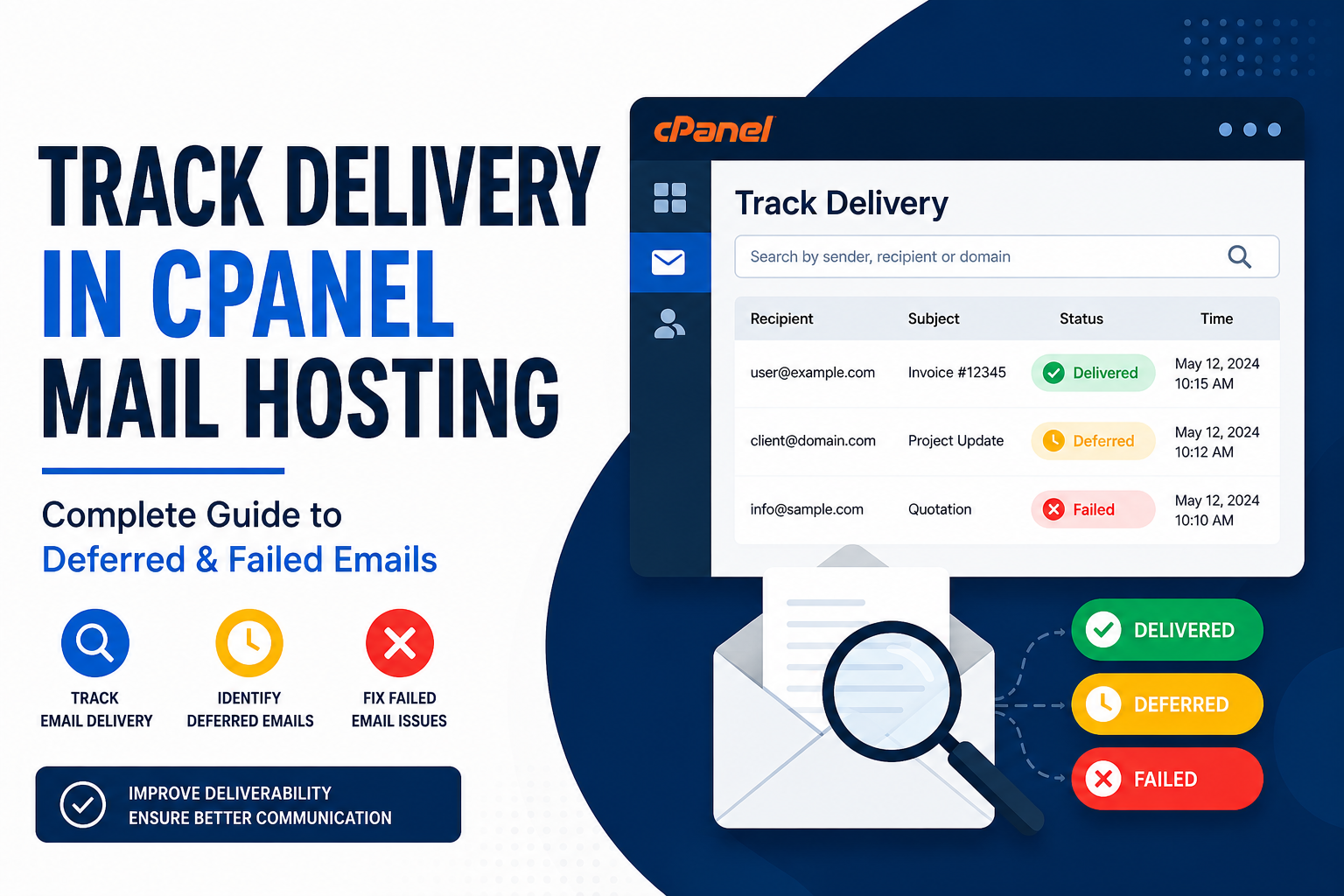
Email communication is one of the most critical parts of any business. Whether you are sending invoices, OTPs, customer replies, quotations, or marketing emails, successful delivery matters. In many cases, website owners using cPanel mail hosting face issues where emails are either delayed, deferred, or completely failed.
Understanding how to track email delivery in cPanel can help you quickly identify problems and improve email reliability.
In this guide, we will explain:
- What deferred and failed emails mean
- How to track email delivery in cPanel
- Common reasons for email failures
- How to fix delivery issues
- Best practices for maintaining healthy email delivery
What is Email Delivery Tracking in cPanel?
cPanel provides built-in email tracking tools that allow administrators to monitor outgoing and incoming emails. These tools help you see:
- Whether an email was delivered successfully
- If the message was delayed
- If the email failed permanently
- The exact error returned by the destination mail server
This feature is extremely useful for troubleshooting communication problems.
Understanding Email Status Types
1. Delivered
This means the recipient’s mail server accepted the email successfully.
Example:
- Invoice sent successfully
- Contact form message delivered
- Customer received OTP
No further action is required.
2. Deferred Emails
A deferred email is temporarily delayed but may still be delivered later.
This usually happens because:
- Recipient server is busy
- Temporary DNS issue
- Greylisting
- Mail server timeout
- Sending rate limits
The server will usually retry automatically after some time.
Example message:
“Temporary local problem – please try later”
Deferred emails are not permanently failed yet.
3. Failed Emails
A failed email means delivery was permanently rejected.
Common causes include:
- Invalid email address
- Blocked IP address
- Spam rejection
- Missing SPF/DKIM records
- Full recipient mailbox
- Domain does not exist
Example:
“550 No Such User Here”
In such cases, the email will not be retried.
How to Track Email Delivery in cPanel
Step 1: Login to cPanel
Open your cPanel account using your hosting URL.
Example:
- yourdomain.com/cpanel
- server-ip:2083
Enter your username and password.
Step 2: Open “Track Delivery”
Inside cPanel:
- Go to the Email section
- Click Track Delivery
This tool shows all email activity related to your domain.
Step 3: Search for an Email
You can search using:
- Sender email address
- Recipient email address
- Domain name
This helps locate specific messages quickly.
Step 4: Review Delivery Status
Each email will display a status such as:
- Delivered
- Deferred
- Failed
You can click the information icon or details link to view the complete mail log.
How to Read Email Error Logs
The delivery log provides detailed technical information.
Important fields include:
| Field | Meaning |
|---|---|
| Sender | Email sender |
| Recipient | Destination email |
| Router | Delivery method |
| Transport | Mail transport used |
| Result | Success or failure reason |
Common Deferred Email Errors and Fixes
1. Greylisting
Error Example
“Try again later”
Meaning
The recipient server temporarily rejects unknown senders to reduce spam.
Solution
Wait for automatic retry. Most servers deliver successfully after retrying.
2. Connection Timeout
Error Example
“Connection timed out”
Meaning
The recipient mail server did not respond in time.
Solution
- Check internet/server connectivity
- Retry later
- Verify firewall settings
3. Rate Limiting
Error Example
“Too many emails sent”
Meaning
The recipient server temporarily blocked excessive email sending.
Solution
- Reduce sending speed
- Avoid bulk sending from shared hosting
- Use professional SMTP services if needed
Common Failed Email Errors and Fixes
1. Invalid Email Address
Error Example
“User unknown”
Solution
Verify the recipient email spelling.
2. SPF Failure
Error Example
“SPF validation failed”
Meaning
The server suspects spoofing because SPF records are missing or incorrect.
Solution
Add proper SPF records in DNS.
Example SPF:
v=spf1 include:yourserver.com ~all
3. DKIM Failure
Meaning
The email signature could not be verified.
Solution
Enable DKIM in cPanel.
Steps:
- Open Email Deliverability
- Repair DKIM records
4. Blacklisted IP Address
Error Example
“Rejected – IP blacklisted”
Meaning
Your server IP is listed in spam databases.
Solution
- Check blacklist status
- Remove malware/scripts
- Request delisting
5. Full Mailbox
Error Example
“Mailbox quota exceeded”
Solution
The recipient must free storage space.
Using Email Deliverability in cPanel
Modern cPanel versions include an Email Deliverability section.
This tool checks:
- SPF configuration
- DKIM records
- DNS health
It also provides automatic repair options.
Using proper email authentication greatly improves delivery rates.
Best Practices for Better Email Delivery
Use Proper SPF, DKIM, and DMARC
These records improve trust and reduce spam classification.
Avoid Sending Spam-Like Content
Avoid:
- Excessive capital letters
- Too many links
- Misleading subject lines
Keep Mailing Lists Clean
Remove:
- Invalid emails
- Inactive users
- Bounced addresses
Monitor Outgoing Mail Regularly
Regular monitoring helps detect:
- Hacked scripts
- Spam abuse
- Delivery issues
Use SMTP Authentication
Always send emails using authenticated SMTP instead of insecure mail functions.
When to Use External SMTP Services
Shared hosting mail servers are suitable for basic communication. However, for:
- Bulk emails
- Marketing campaigns
- High delivery requirements
consider using:
- Google Workspace
- Microsoft 365
- Amazon SES
- Mailgun
- SendGrid
These services provide better reputation management and deliverability.
Conclusion
Tracking deferred and failed emails in cPanel is essential for maintaining reliable business communication. The “Track Delivery” feature helps administrators quickly identify why messages are delayed or rejected.
By understanding delivery statuses, checking mail logs, and properly configuring SPF/DKIM records, you can significantly improve email success rates and avoid communication problems.
Regular monitoring and proper email authentication are the keys to healthy email hosting performance.
Need Professional cPanel Mail Hosting Support?
If your business experiences:
- Email delivery failures
- Spam issues
- Blacklisting problems
- DNS misconfiguration
- SMTP setup challenges
professional server management can help ensure stable and secure email operations.
For expert IT, hosting, and server solutions, visit Fabonic